Core Web Vitals & Performance
Browser Caching and Cache Lifetimes: How to Stop Sending Resources Users Already Have
By Robert Belkin, Founder & Lead Strategist
Published · Reviewed by Robert Belkin · 7 min read
Browser caching is the mechanism by which a browser stores a copy of a downloaded resource and reuses it on subsequent requests instead of fetching it again. When configured correctly, repeat visitors and visitors navigating between pages on your site download almost nothing. When misconfigured or absent, every page load re-downloads every asset, every time, regardless of whether anything has changed.
How Cache-Control Works
Caching behaviour is controlled by the Cache-Control HTTP response header. The value specifies how long a resource can be considered fresh and whether it can be stored at all.
max-age=N — The resource is fresh for N seconds from the time it was downloaded. During that period, the browser serves the cached copy without making any network request.
no-cache — Despite the name, this does not mean do not cache. It means cache it, but always revalidate with the server before using the cached copy. This allows the browser to use a conditional request to check whether the resource has changed. If the server confirms it is unchanged (304 Not Modified), the browser uses the cached copy — no full download needed.
no-store — Do not store this resource at all. Appropriate for responses containing sensitive, per-user data.
immutable — The resource will never change for the lifetime of max-age. Browsers can skip revalidation entirely even after the entry is technically stale. Used alongside a long max-age for versioned assets.
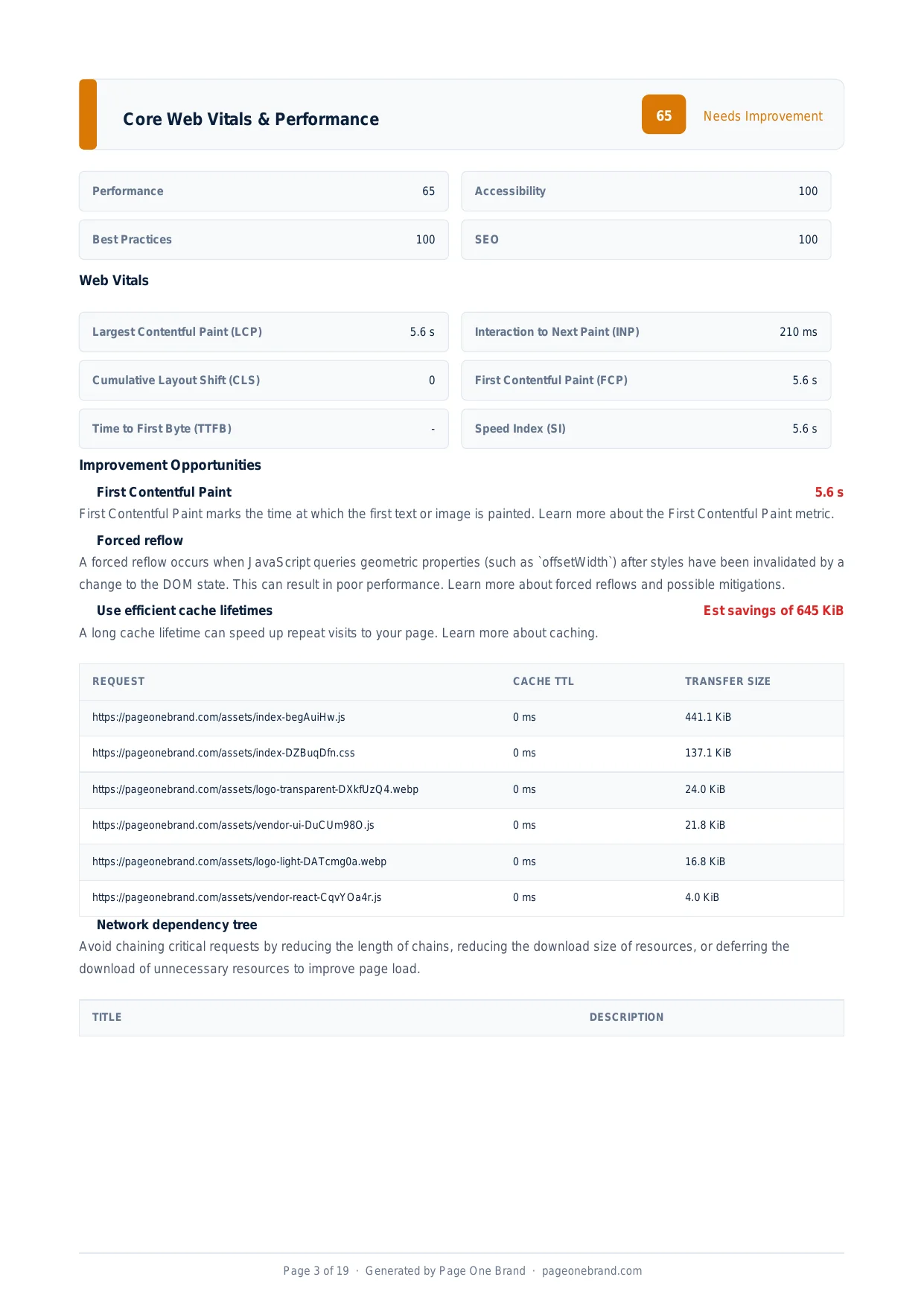
The Use Efficient Cache Lifetimes opportunity lists every resource missing a long cache header and the transfer size that would be saved on repeat visits.
The Right Cache Strategy for Each Resource Type
Versioned static assets (JavaScript bundles, CSS files, fonts, images with hash-based filenames): Cache-Control: public, max-age=31536000, immutable — one year, immutable. These files have a hash in the filename (for example, index.a3f2c1.js), so when their content changes, the filename changes too. The old URL will never serve new content. Caching them for a year is completely safe.
The HTML document: Cache-Control: no-cache or a short max-age (60 to 300 seconds). The HTML document references all your other assets. If you cache it for a year and deploy a new version, users receive the old HTML pointing to old files. A short or revalidating cache on the HTML ensures users always receive the current document.
Images without cache-busting hashes: A moderate max-age (86400 to 604800 seconds — one day to one week) so repeat visits benefit from caching, but changes propagate within a reasonable time.
What Happens Without Cache Headers
When no Cache-Control header is present, browser behaviour is inconsistent. Different browsers apply different heuristic caching rules — some cache for a percentage of the file's age, others cache briefly, others not at all. The result is unpredictable: some users cache assets, most do not, and your server fields requests for the same unchanged files repeatedly.
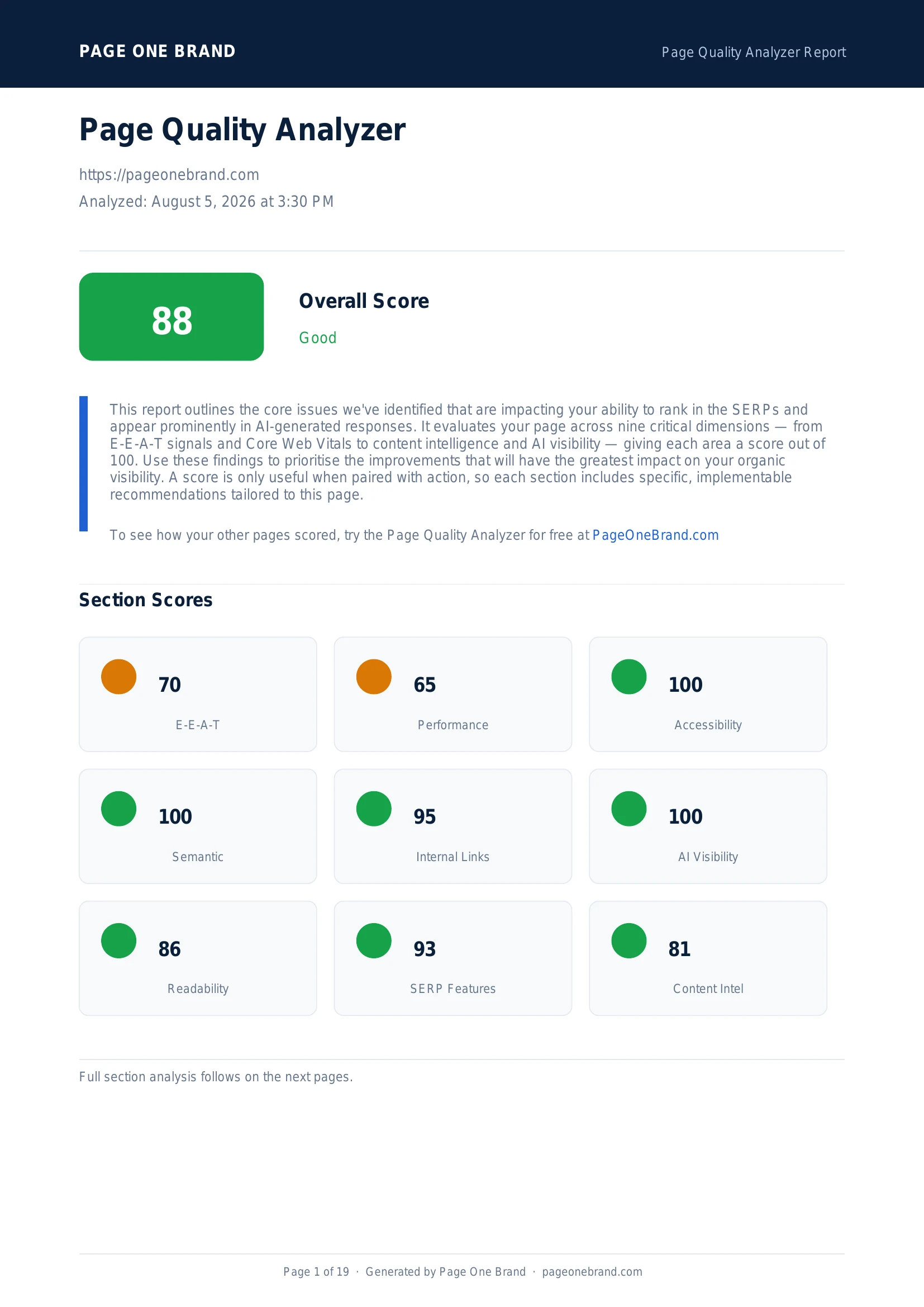 Caching configuration affects Performance score, FCP, LCP, and Speed Index simultaneously — it is a server configuration change that requires no changes to your application code.
Implementing Caching Headers
For static files served by Nginx:
location /assets/ {
  add_header Cache-Control "public, max-age=31536000, immutable";
}
For Node.js/Express:
app.use('/assets', express.static('dist/assets', {
  maxAge: '1y',
  immutable: true
}));
After setting cache headers, verify them with Chrome DevTools: open the Network panel, reload the page, and inspect the Response Headers for each asset. On subsequent page loads, assets with long cache headers appear with Memory cache or Disk cache in the Size column — meaning the browser served them without any network request at all.
The Lighthouse Use Efficient Cache Lifetimes audit showed 645 KiB of potential savings for one scanned site — the entire JavaScript bundle, CSS file, and logo image being transferred on every page load when they could have been served from cache. Fixing caching is a server configuration change that requires no code changes and immediately benefits every repeat visitor. Run the Page Quality Analyzer before and after to confirm the audit passes.
Frequently Asked Questions About Browser Caching
What is the difference between Cache-Control: no-cache and no-store?
Despite its name, no-cache does not mean the resource is uncached — it means the browser caches it but must revalidate with the server before using the cached copy on subsequent requests. If the server confirms the resource is unchanged (304 Not Modified), the browser uses its cached version without downloading it again. no-store means do not cache this resource at all — every request fetches a fresh copy. Use no-cache for the HTML document so users always get the current version while still benefiting from conditional requests. Use no-store only for responses containing sensitive per-user data that must never be stored on disk.
How long should I cache static JavaScript and CSS files?
Static assets with hash-based filenames — for example, index.a3f2c1.js or styles.8b2d4e.css — should be cached for one year with the immutable directive: Cache-Control: public, max-age=31536000, immutable. When the file content changes, the bundler generates a new hash and therefore a new filename. The old URL will never serve new content, so caching it indefinitely is completely safe. The immutable directive tells browsers they can skip revalidation requests even after the cache entry technically expires, reducing unnecessary server requests.
What happens to performance when cache headers are missing?
Without Cache-Control headers, browser behaviour is inconsistent and unpredictable. Different browsers apply different heuristic caching rules — some cache resources for a percentage of their apparent age, others cache briefly, others not at all. In practice, most resources without explicit caching are refetched on every page load. A page whose JavaScript bundle, CSS file, and images are re-downloaded on every visit pays the full download cost for repeat visitors — users who already have those resources and should be getting them from cache in zero milliseconds instead. The Lighthouse Use Efficient Cache Lifetimes audit identifies every resource missing a cache header and the transfer size wasted per visit.
Should the HTML document be cached for a long time?
No. The HTML document should use no-cache or a very short max-age (60 to 300 seconds). The HTML document references all your other assets — the script tags, link tags, and image sources are all specified in the HTML. If you cache the HTML document for a year and deploy a new version, users continue to receive the old HTML pointing to old asset filenames. A short or revalidating cache on the HTML ensures every user receives the current document and therefore the current asset references. The assets themselves (with hash-based filenames) can be cached for a year — but the HTML that points to them must stay fresh.
Editorial implementation brief · Performance
A cache-header decision tree you can apply to every asset
Start with whether a response is public, user-specific, or versioned. The right header is a contract with the browser and shared caches, not a generic instruction to “cache everything.”
What to check, in order
- Private data: use
Cache-Control: private, no-store for credentials, reports, and personalised responses. - Stable HTML: use a short
max-age and revalidation while deployments are frequent. - Versioned assets: fingerprint the filename, then use
public, max-age=31536000, immutable. - Shared CDN responses: add
s-maxage only after checking that the response contains no user data. - Verify both the first request and a repeat request in DevTools; a cached response should show the expected cache status and no unexpected revalidation.
Copy-paste example
Cache-Control: public, max-age=31536000, immutable
ETag: "assets-2026-08-25"

// Express: short-lived HTML, long-lived fingerprinted assets
app.use("/assets", express.static("dist/assets", {
  maxAge: "1y",
  immutable: true,
}));
Evidence from our workflow
For each release, we compare a cold load and a repeat navigation in the same browser profile, record transferred bytes, and keep the response headers with the report. This separates a genuine cache win from a page that merely feels faster because the server was warm.
Primary sources
Editorial note: This guide was written by Robert Belkin, Founder & Lead Strategist at Page One Brand, and technically reviewed by Robert Belkin on August 25, 2026. See the author profile, scoring methodology, and contact page for supporting business and editorial information.